How toAn official competition
An official competition
A panel of judges, each on their own device, with the chief judge's tablet as the hub. The set-up wizard takes you through it one step at a time.
Start a new competition
On the hub tablet, pick Official competition, then tap Host on this device. Fill in the name, the date and the venue, how many Judges are on the panel (three is the ICF panel), whether to use the Run timer, and the rule set. Then tap Host it on this device.
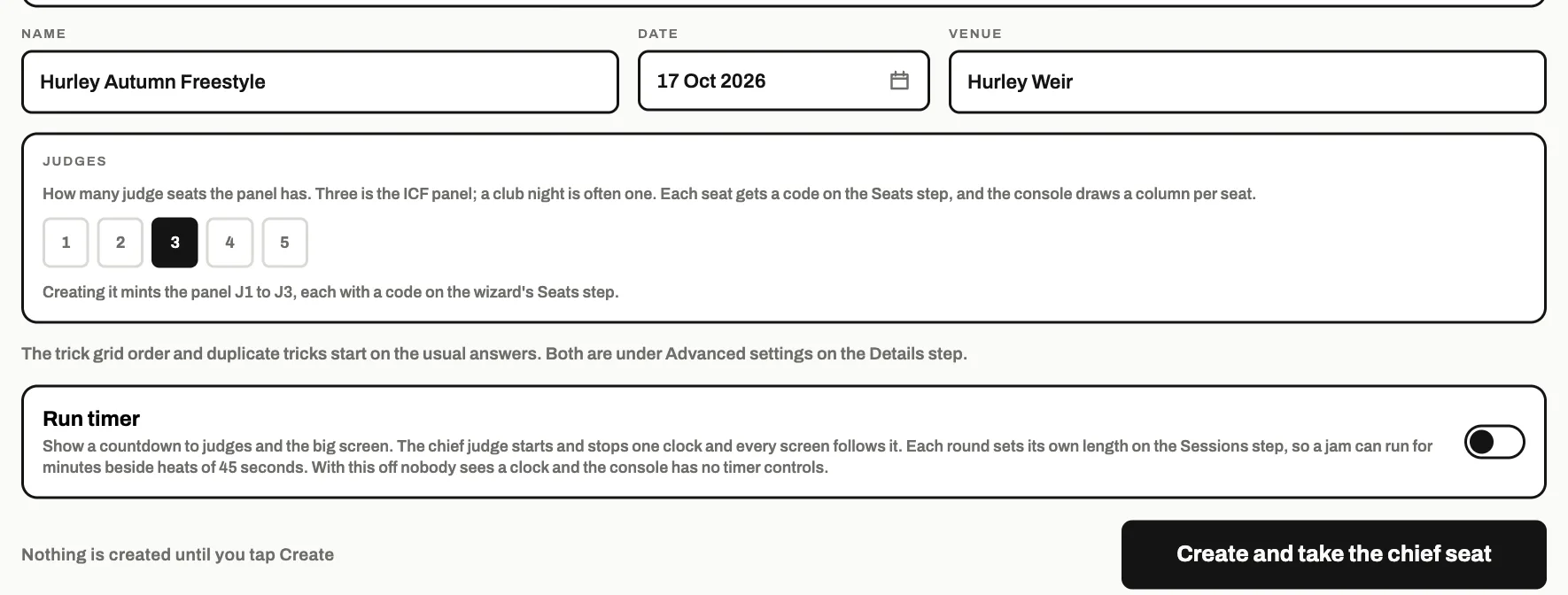
On the hub tablet the box above these says the competition is hosted on this device. What this doesCreates the competition, makes this tablet the hub and gives it the chief judge's seat. It also makes a seat for each judge and an observer, and one for a timer when the run timer is on.
Good to knowUsing a hub that is already running somewhere else? Turn on Advanced: use a separate hub, type its Hub address, tap Check, then Create and take the chief seat.
Details
Check the name, the venue, Date from and Date to, the rule set, the number of judges and the run timer.
Everything under Advanced settings · optional can be left as it is: none of it is needed to run the day. Open all shows every group, and each is explained in Every option explained.
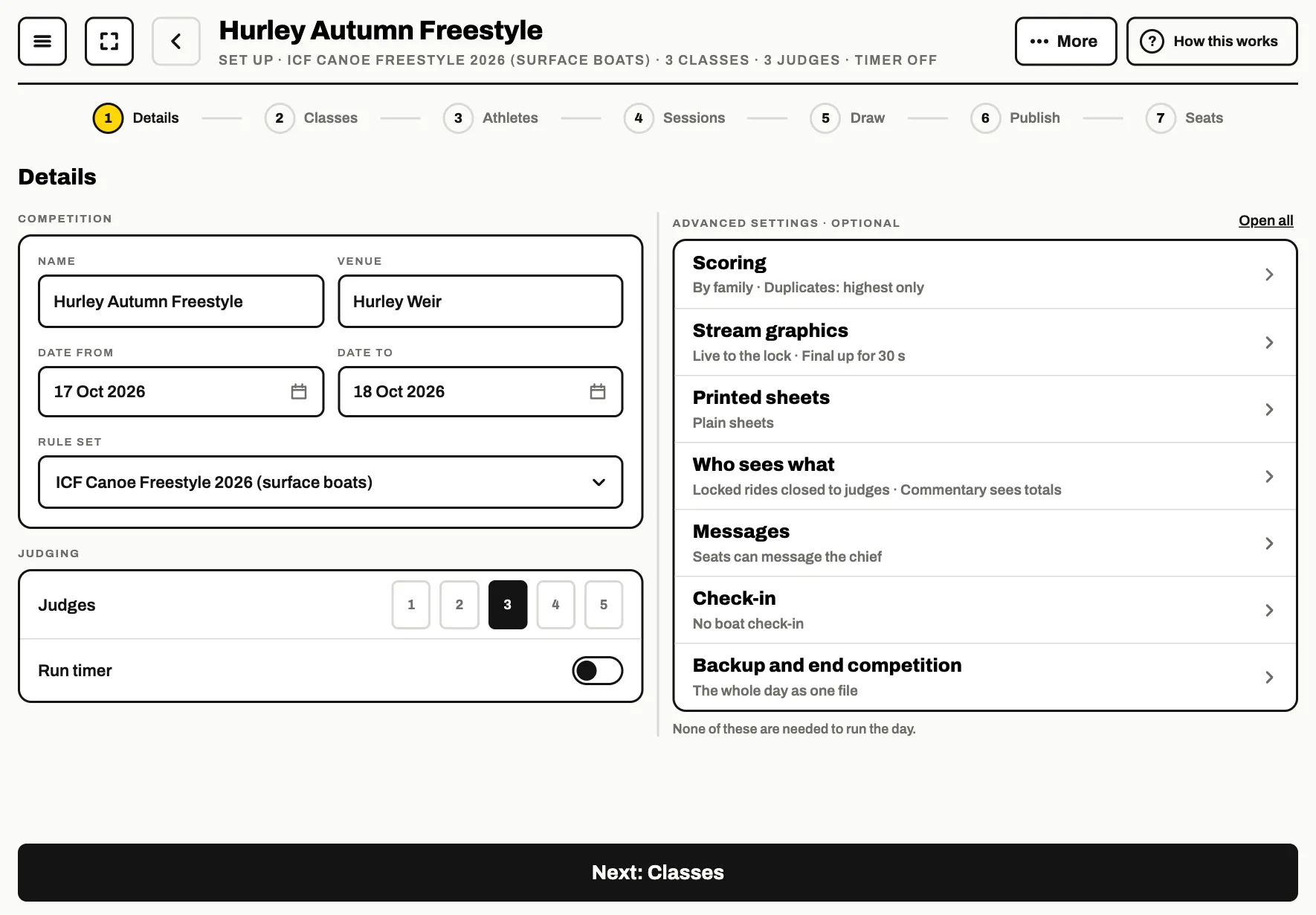
Tap Next: Classes .
Classes
Tap Add classes, tick the classes you are running and tap the Add button. Add a class of your own is at the foot of the list.
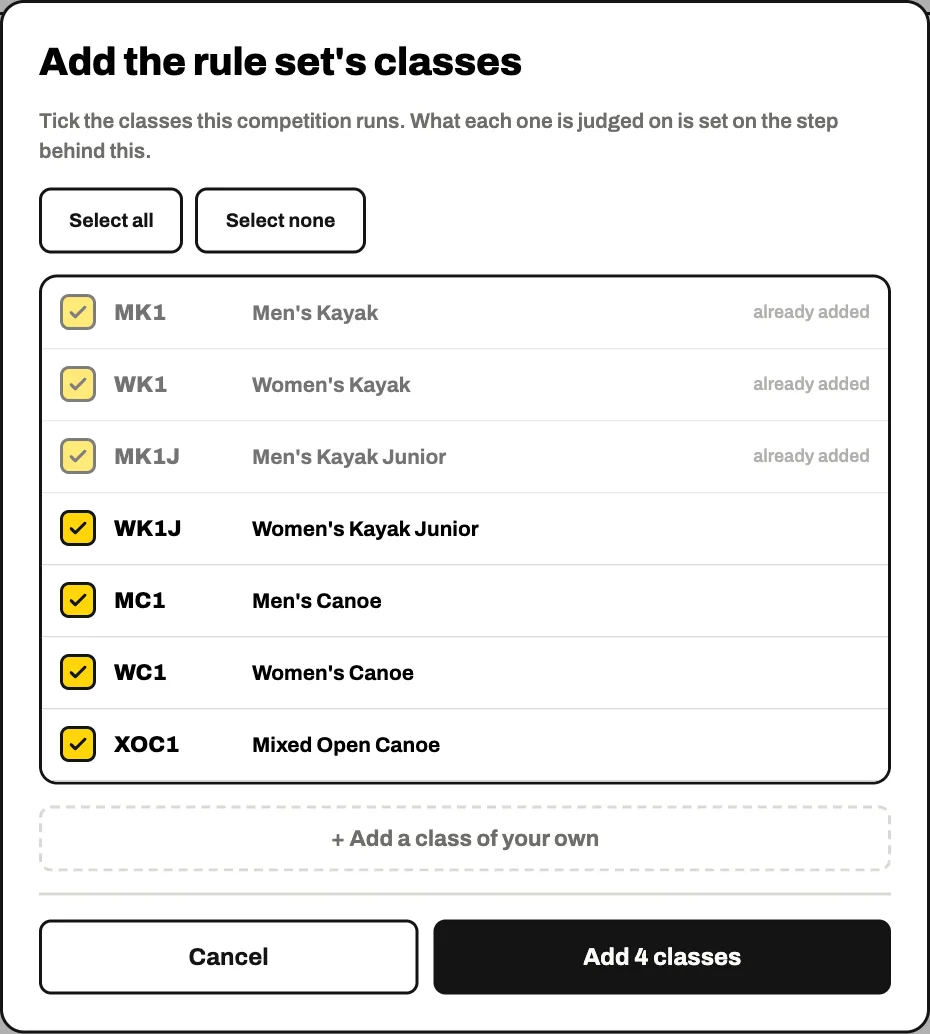
Classes already in the competition are marked already added. Each class row has a menu (the three dots) for its own options: whether fun moves are on the grid, and how its paddlers' names appear on the site.
Athletes
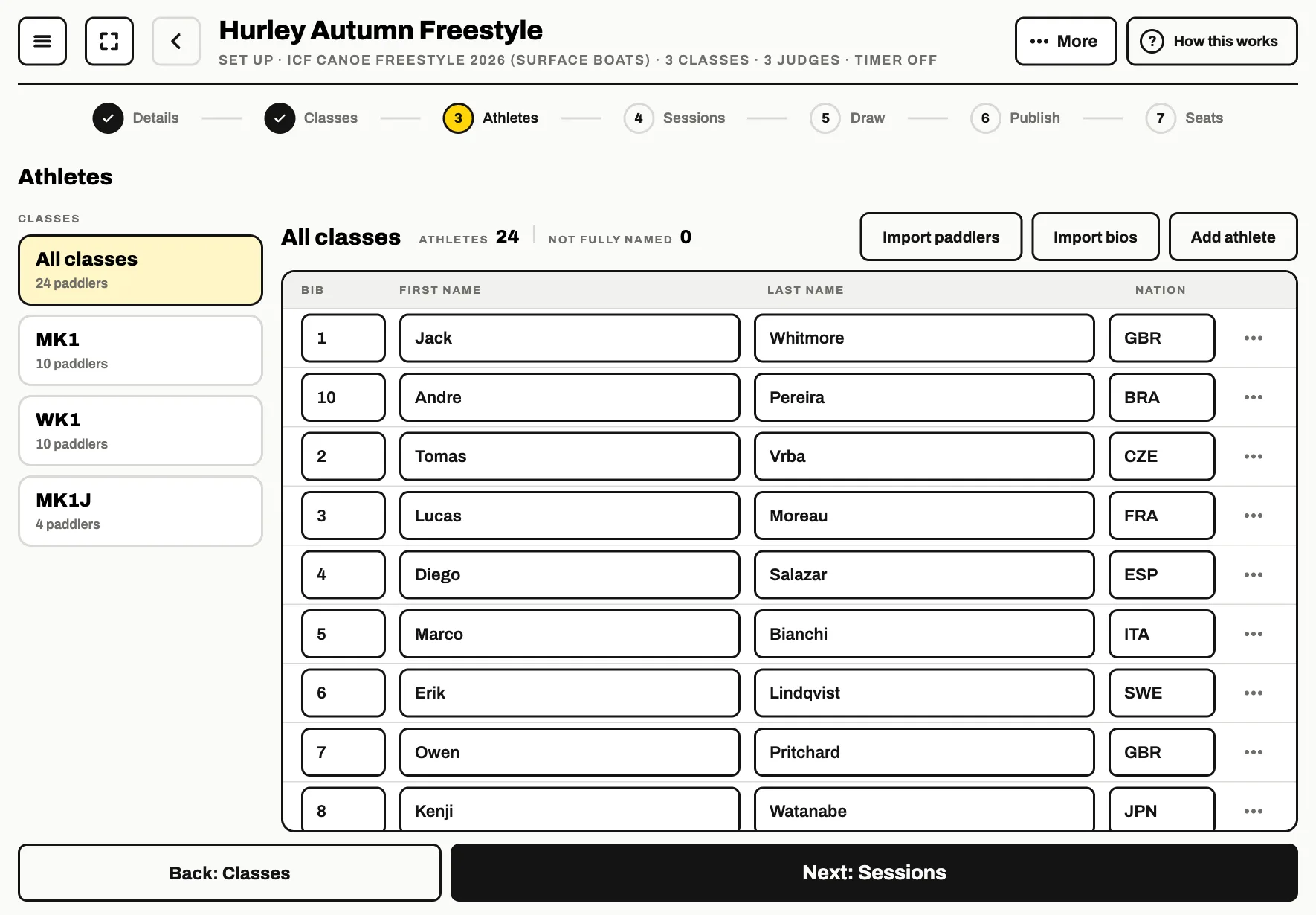
Tap Add athlete for each paddler, or Import paddlers to choose a file or paste a list from a spreadsheet. Import bios adds the commentary notes, matched by bib or ICF number.
Sessions
A session is the classes that paddle together, with their rounds in a chain. Add a session per class makes one for every class; Add a custom session puts two classes on the water together.
Tap a round to set its day, its feature, how many runs and which count. Add round adds the semi-finals or finals after it.
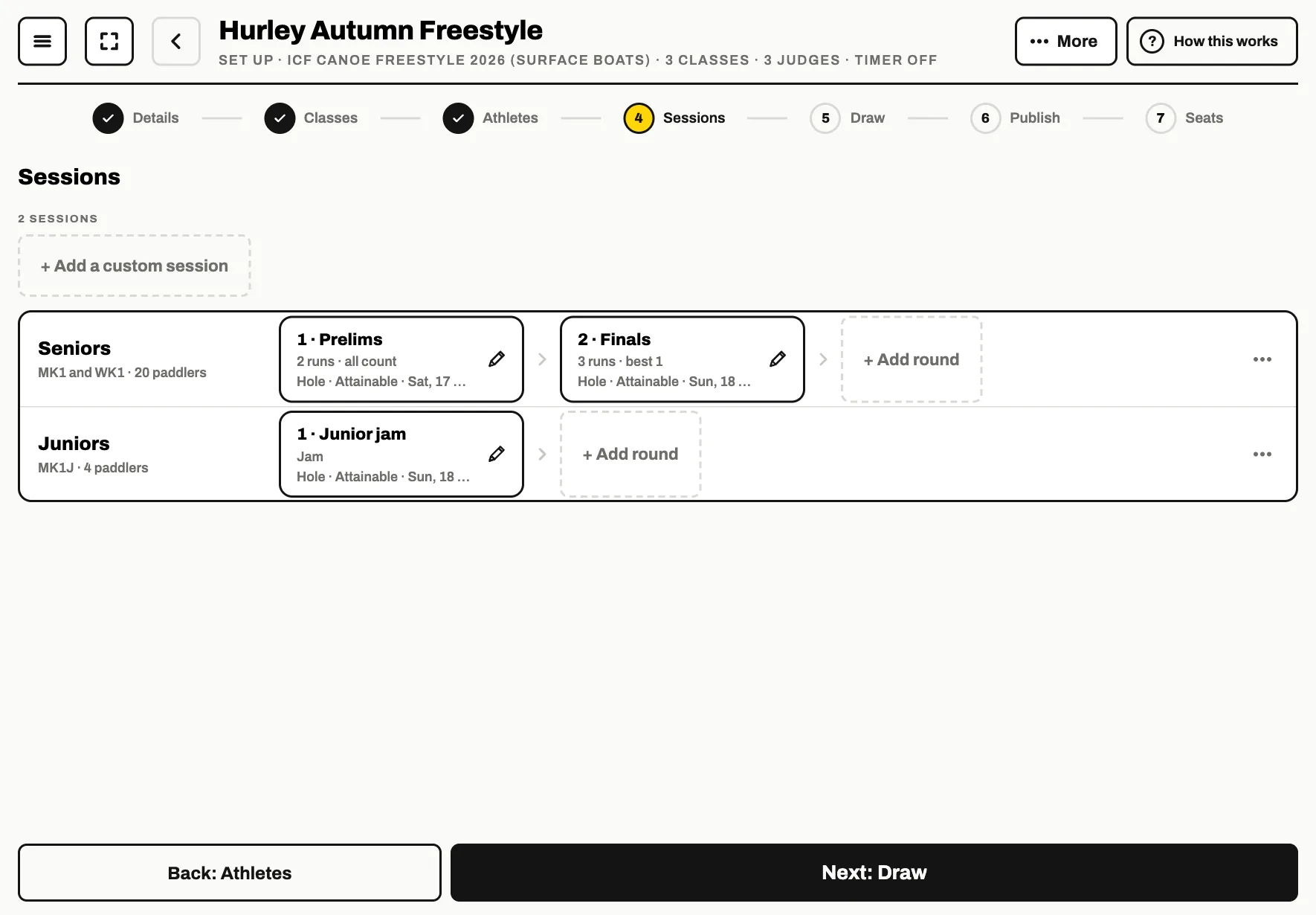
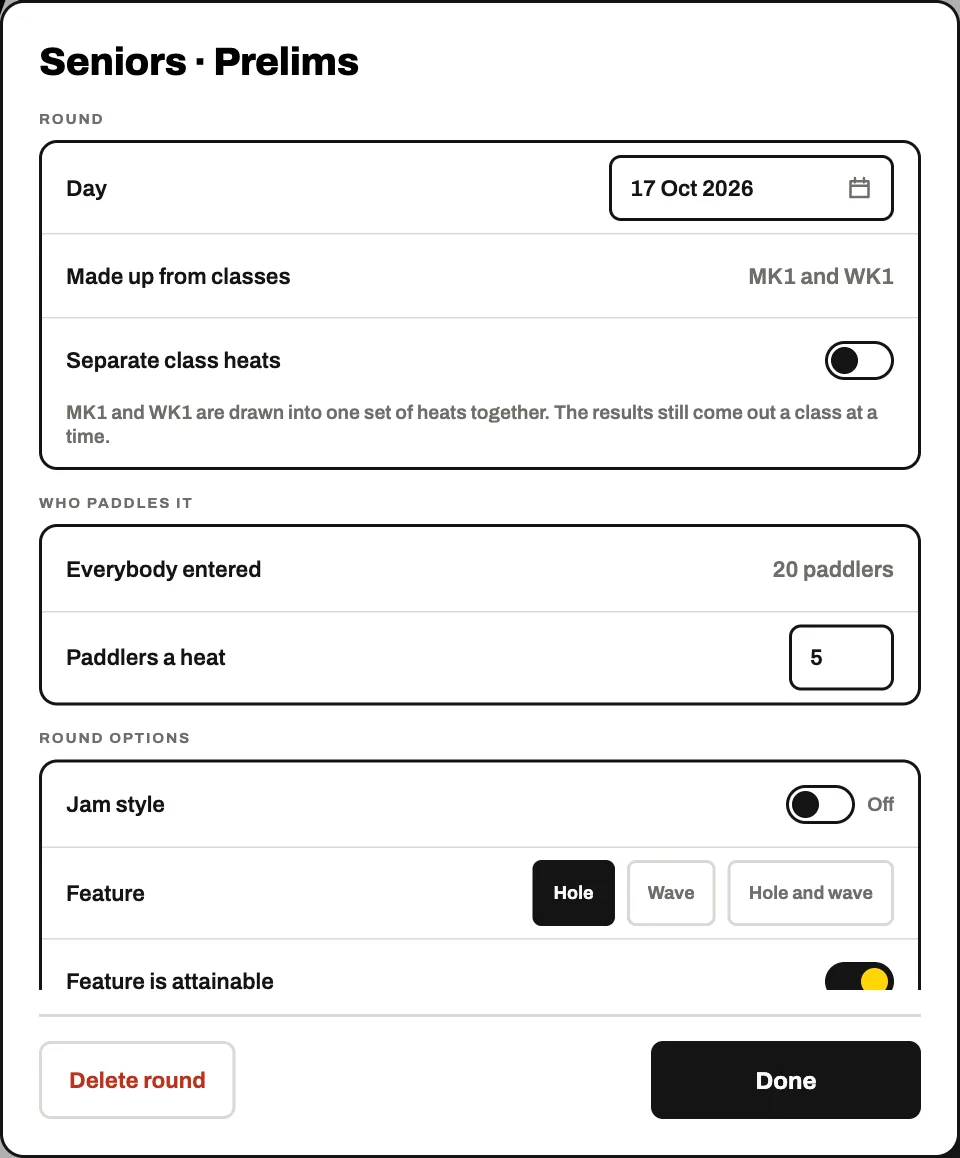
Each round starts on the ICF rule book's answers. Draw
Pick a session and its first round, then More and Draw this round. Add a heat adds one by hand, and a heat's own menu sets its time.
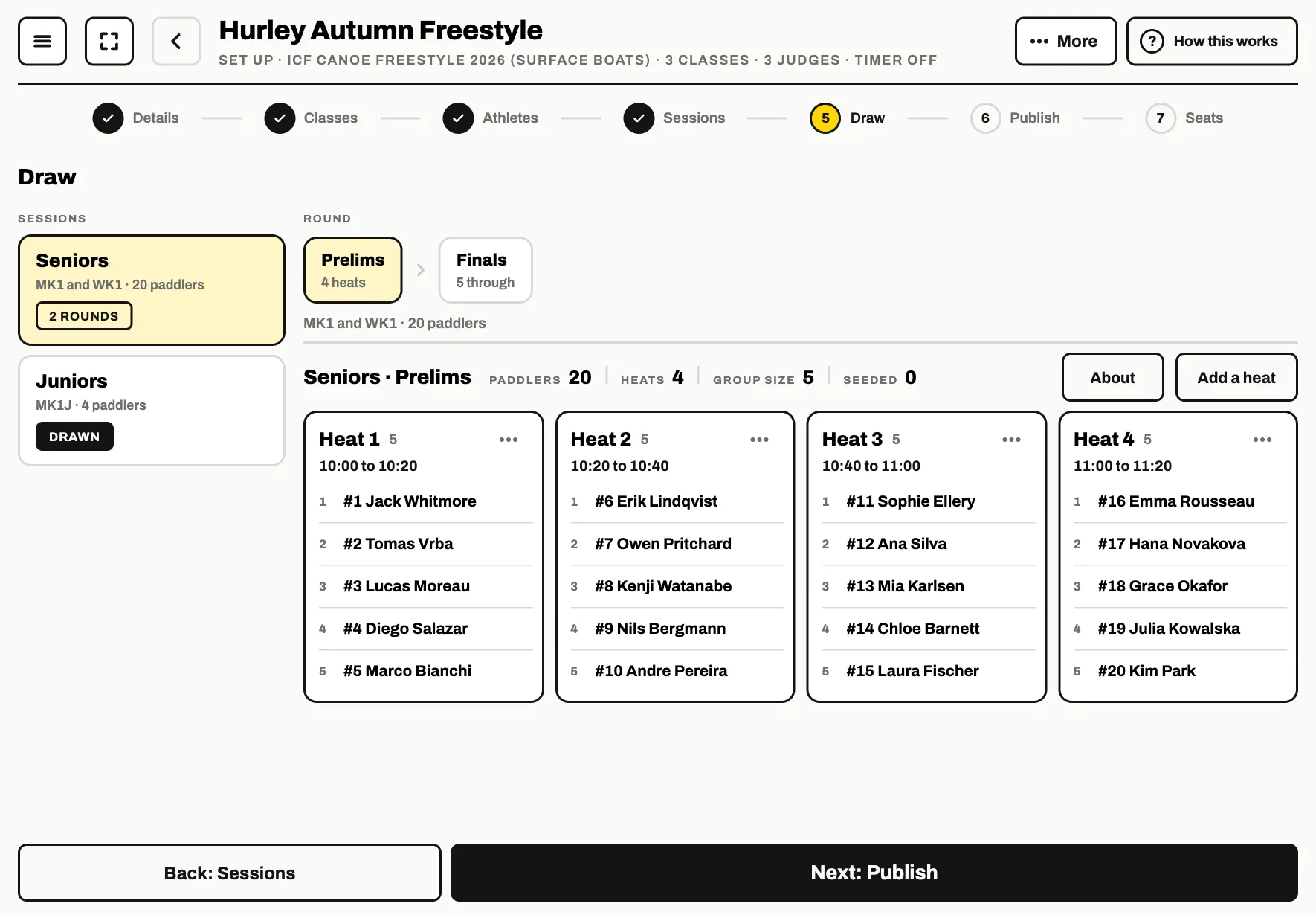 What this does
Splits the paddlers into heats for the first round. Later rounds fill from the results, best placed paddler last.
Publish
Choose what goes on paddlefreestyle.com: how names appear and how much of the scoring is shown. Nothing goes online until you tap Publish .
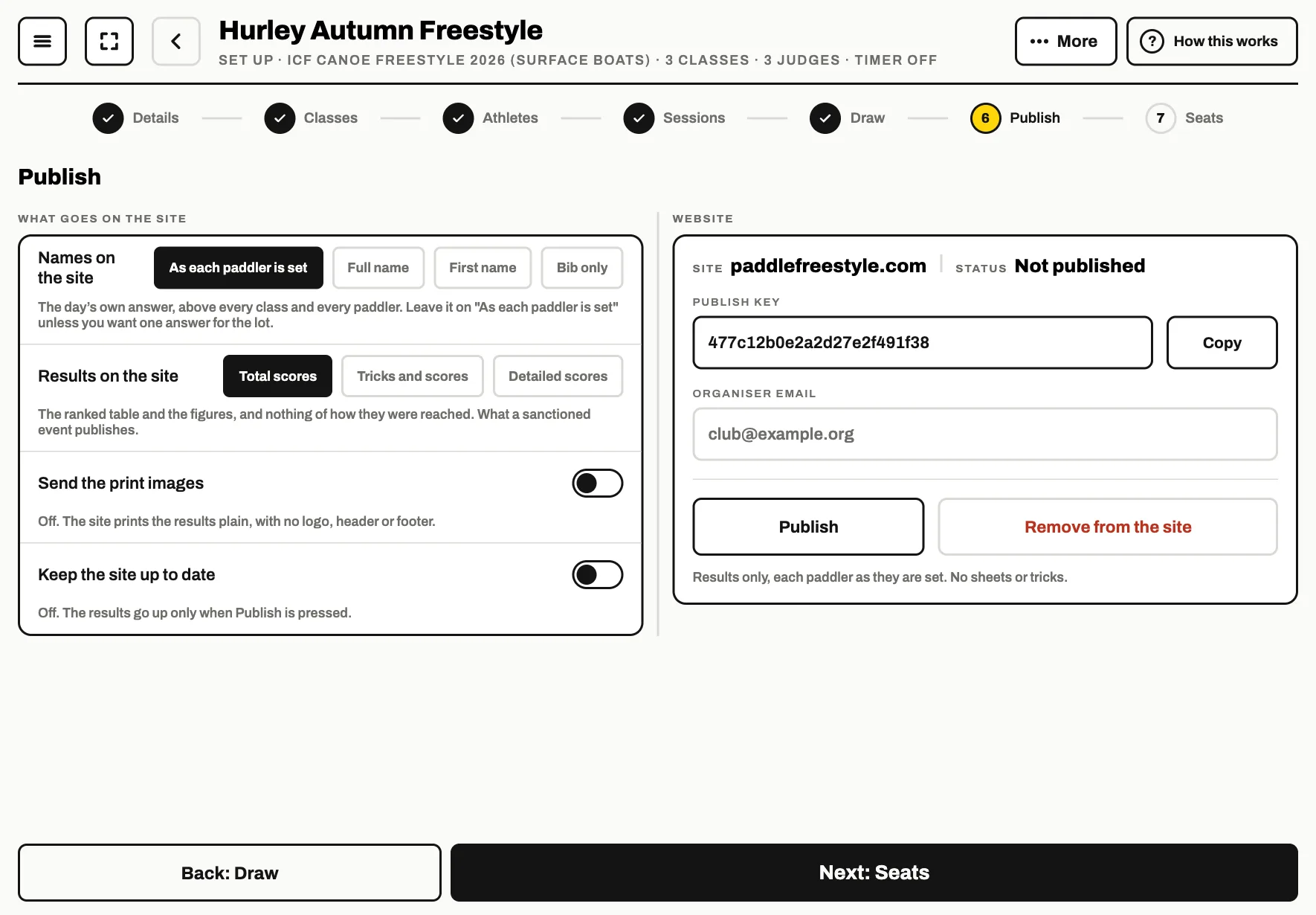 Good to know
Keep the Publish key somewhere safe. It is what lets you update or remove the results later, from this tablet or any other.
Seats
Every seat has its own QR code. A judge points their phone camera at theirs and they are in. Show full screen makes a code big enough to scan from a few steps away.
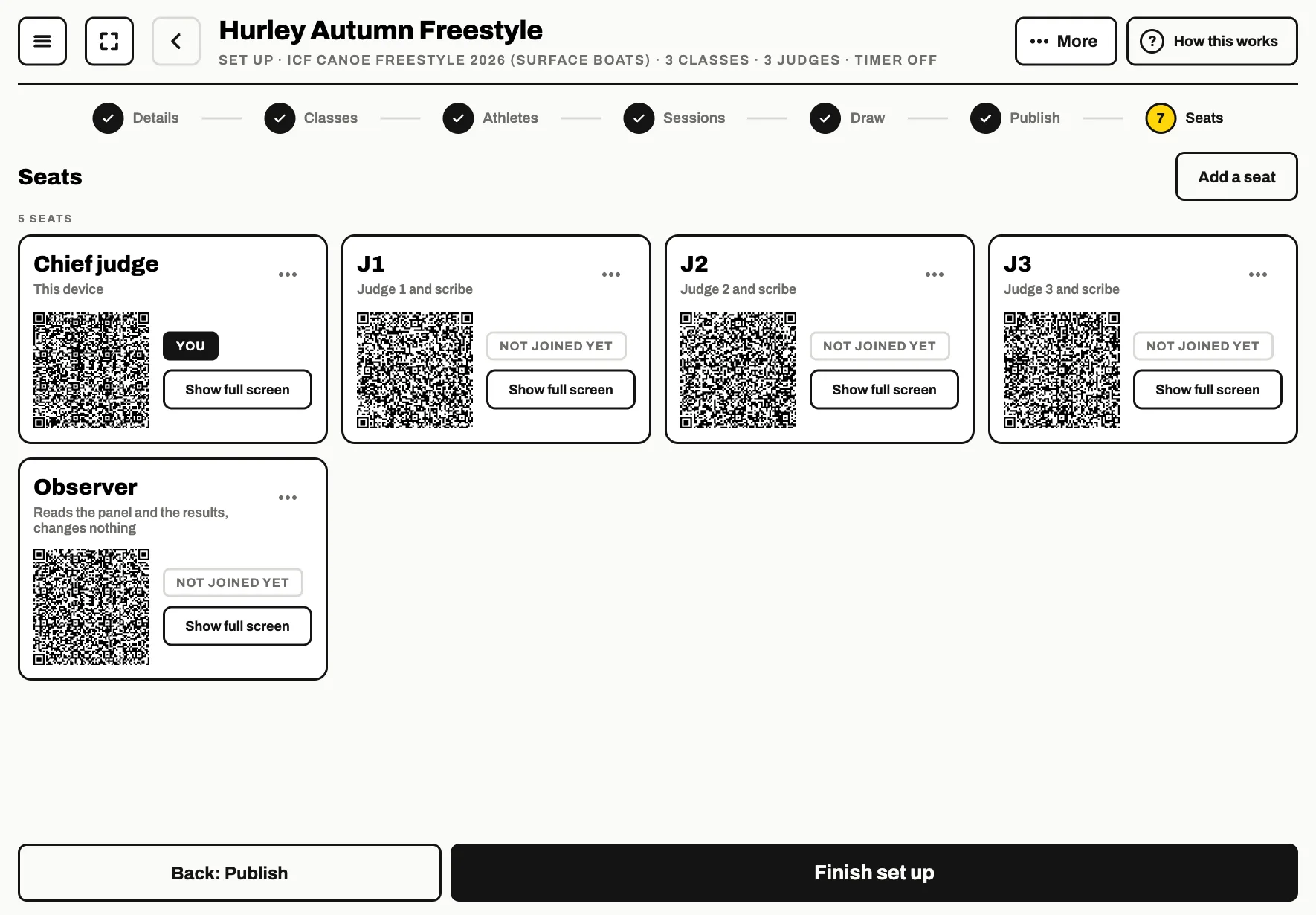
Add a seat adds a scribe, a commentator, a check-in desk or another seat. See Getting your judges in.
Open the console
Tap Finish set up. The chief judge's console opens with the panel across the top and the first paddler at the bottom.
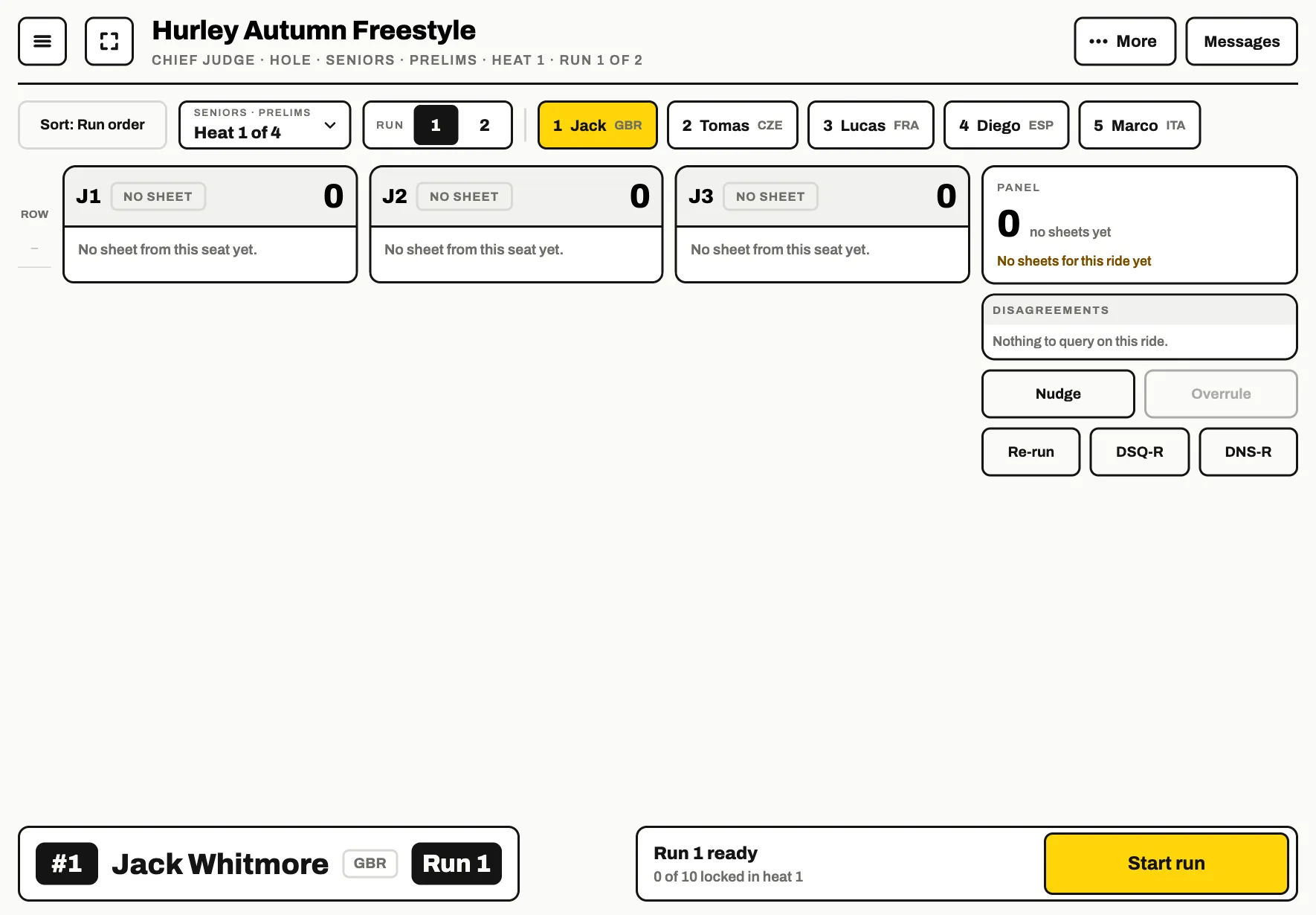
When the judges show as joined, tap Start run . On the day takes it from there.