How toA local competition
A local competition
One tablet, one judge. You set up the classes, the paddlers and the heats, then score every run on the same tablet.
Open your local competitions
Pick Local competition on the first screen. You see the list of local competitions on this tablet, which is empty the first time.
Good to knowAlready have the entries in a spreadsheet? Use Create from spreadsheet under More on this list instead, and the spreadsheet guide.
Create the competition
Tap New competition. Give it a name, a date and a venue, and pick the rule set: surface boats or squirt boats. Turn on Run timer if you want a countdown on screen. Then tap Create and set up .
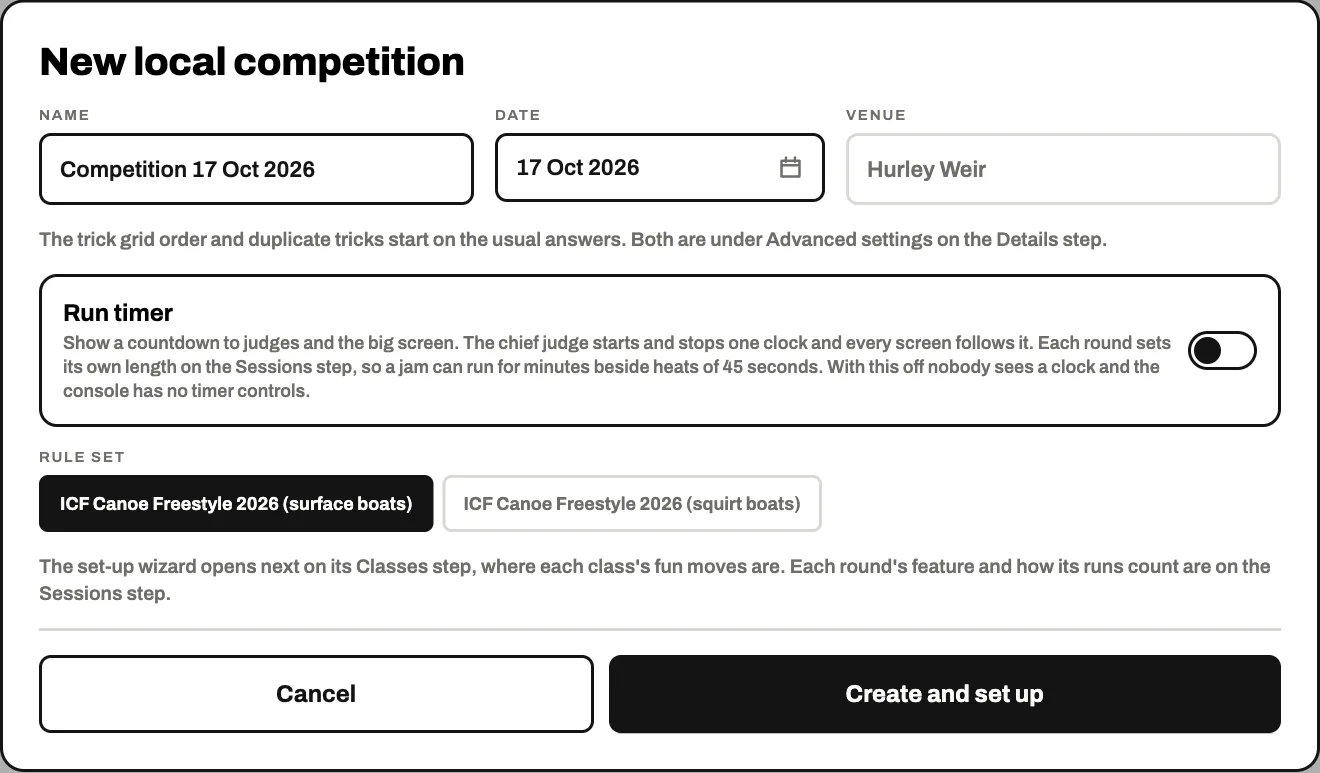 What this does
Makes the competition on this tablet and opens the set-up wizard on its Classes step. A local competition has one judge, so there is no panel to choose.
Add the classes
Tap Add classes . The rule set lists its classes: tick the ones you are running and tap the Add button at the foot. For a class the list does not have, tap Add a class of your own.
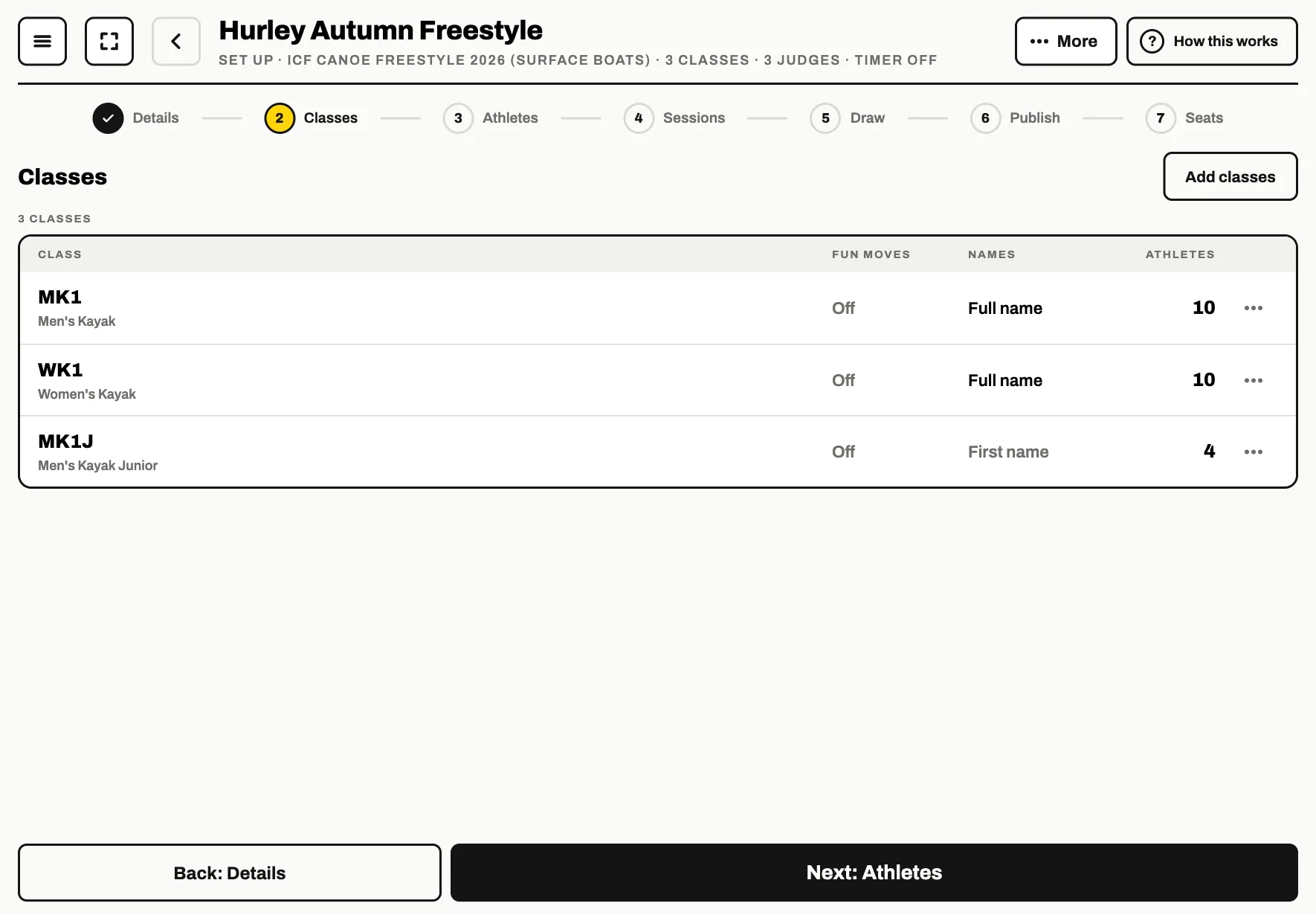
When the classes are in, tap Next: Athletes .
Add the paddlers
Tap Add athlete for each paddler, or Import paddlers to choose a file or paste a list. Each paddler needs a bib, a first name and a class; the last name and the nation are optional.
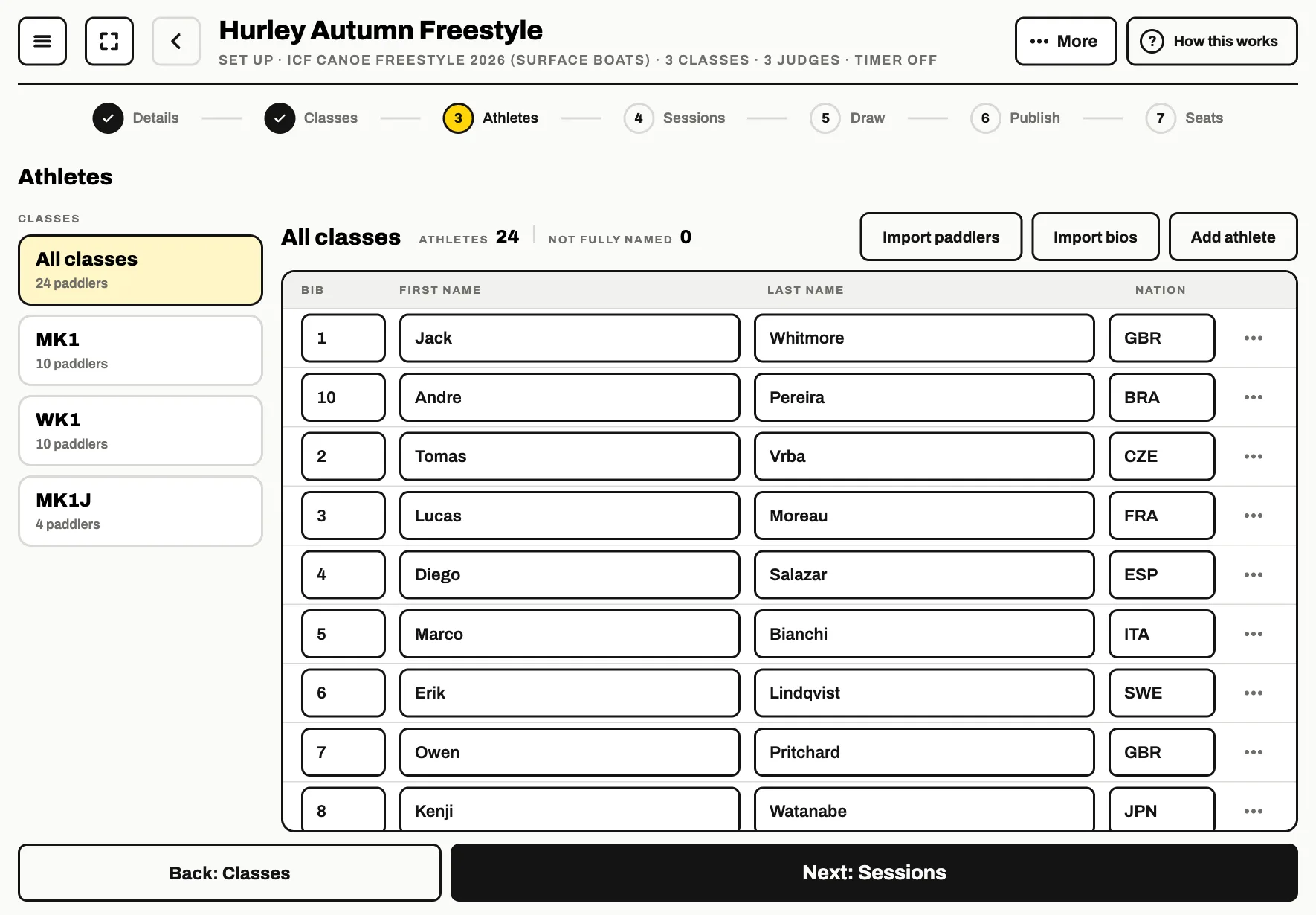 Good to know
You can type straight into the table to put a name or a bib right.
Set up the sessions and rounds
A session is the classes that paddle together, with their rounds in a chain: prelims, then semi-finals, then finals. Add a session per class makes one for every class that has none.
Tap a round to set how it runs, and Add round to add the next one.
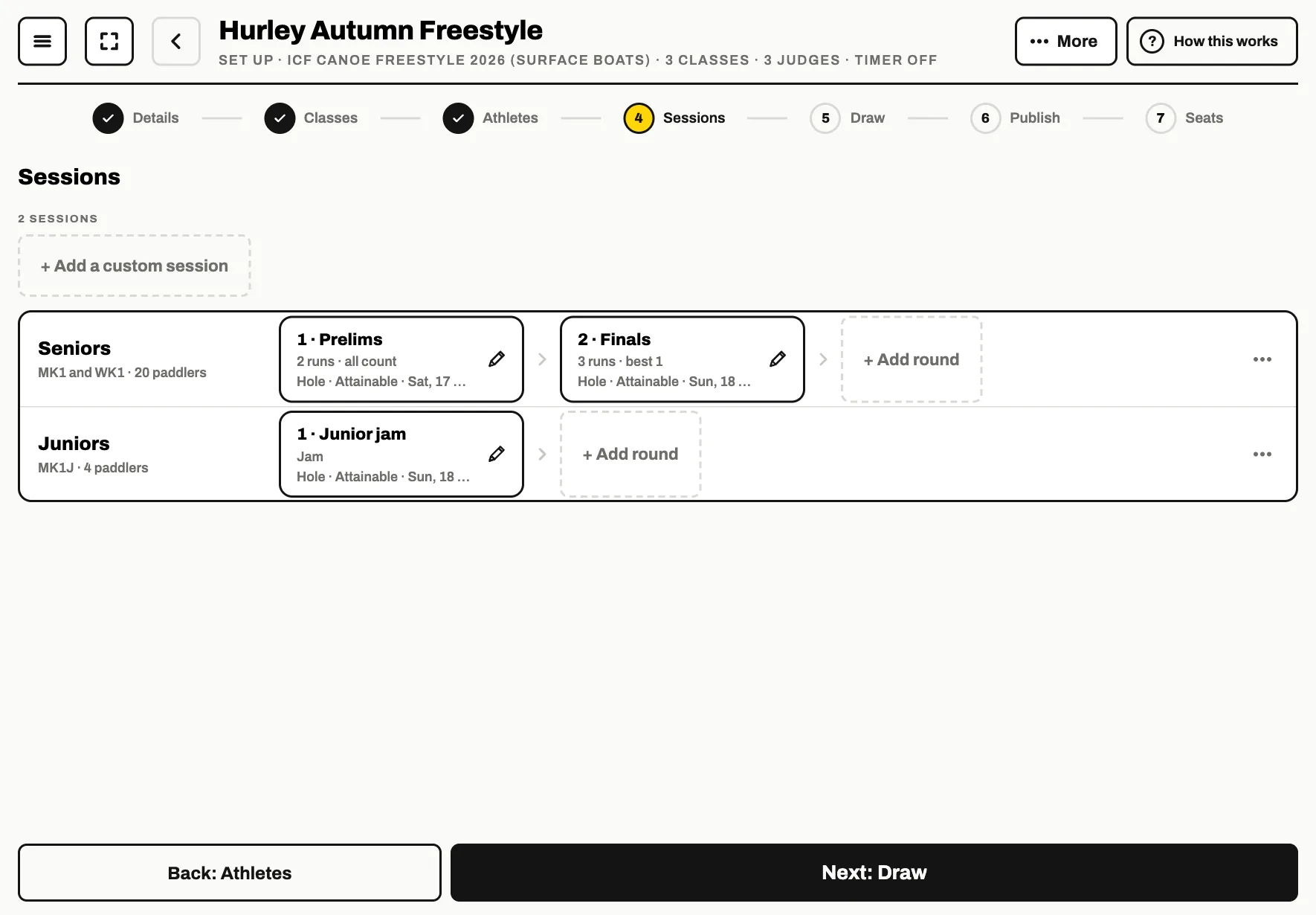
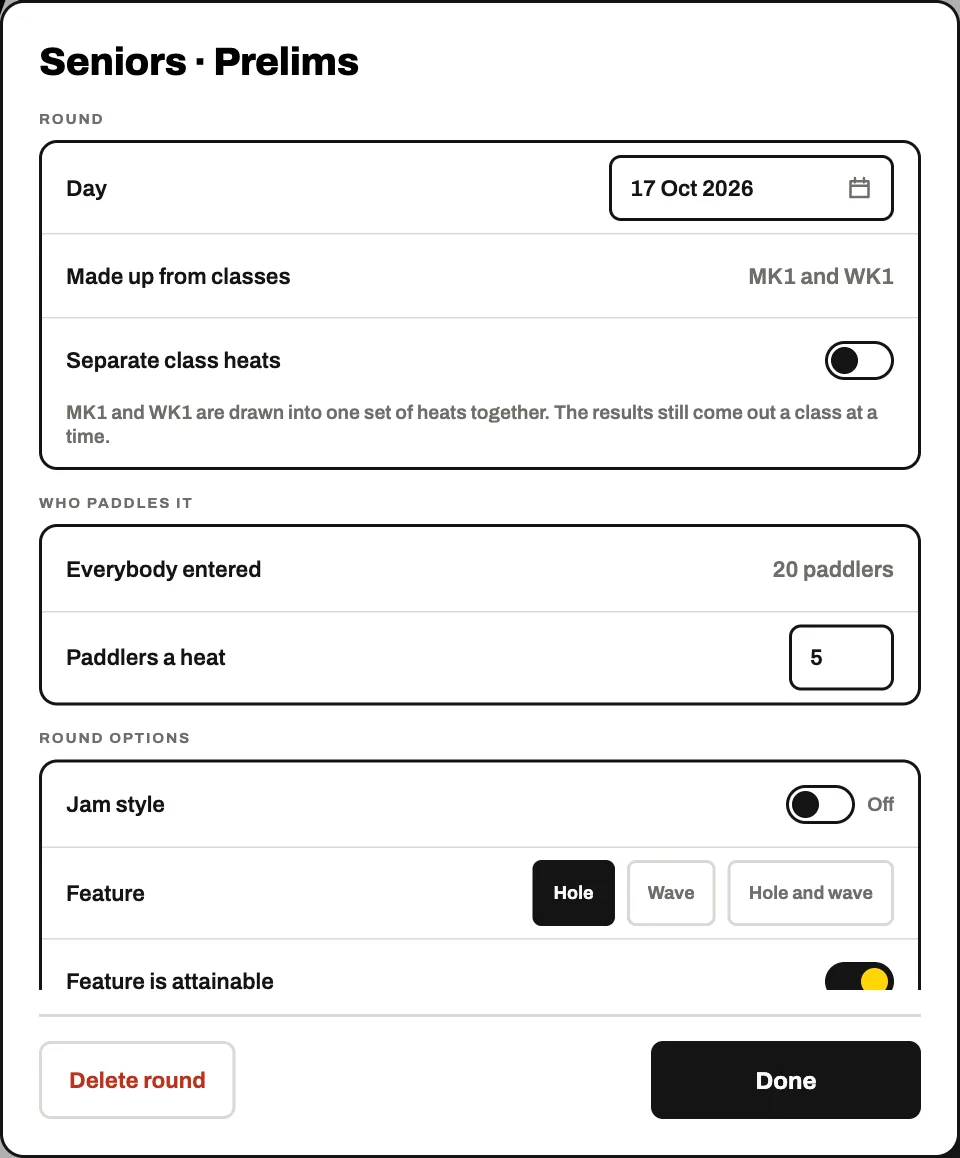
A round starts on the rule book's own answers. Change only what your day does differently. Every setting is explained in Every option explained.
Draw the heats
On Draw, pick a session, then its first round. Tap More and Draw this round to split the paddlers into heats, or Add a heat and place them yourself.
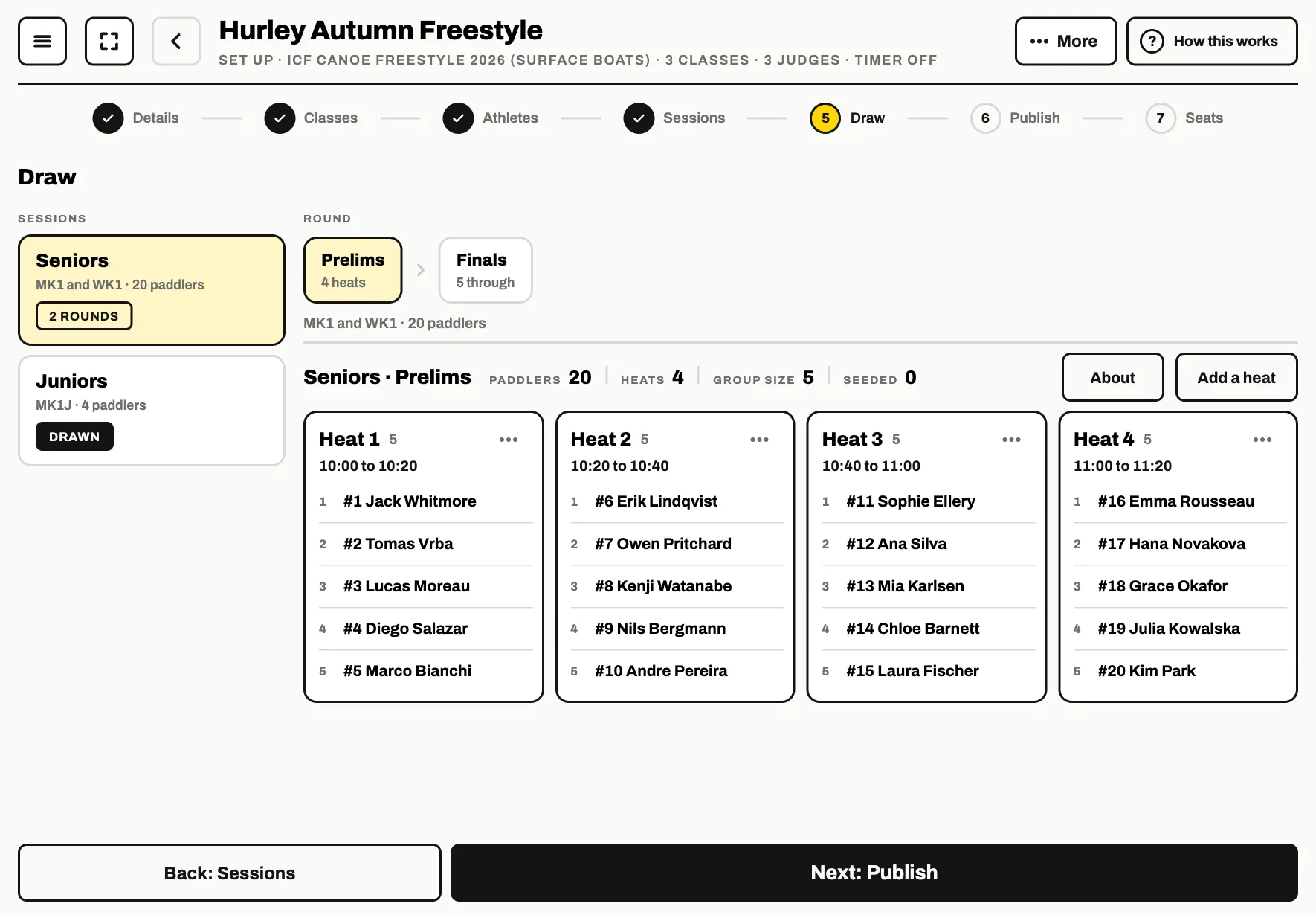 What this does
Only the first round of a session is drawn. The later rounds fill from the results as the day goes.
Finish the set-up
The last step, Publish, is only needed if you want the results on paddlefreestyle.com: see the publish options. Tap Finish set up and the console opens.
Score the first run
The console shows who is up. Tap Start run and the trick grid opens on this tablet. Score the run, tap Review run to check it, then Save.
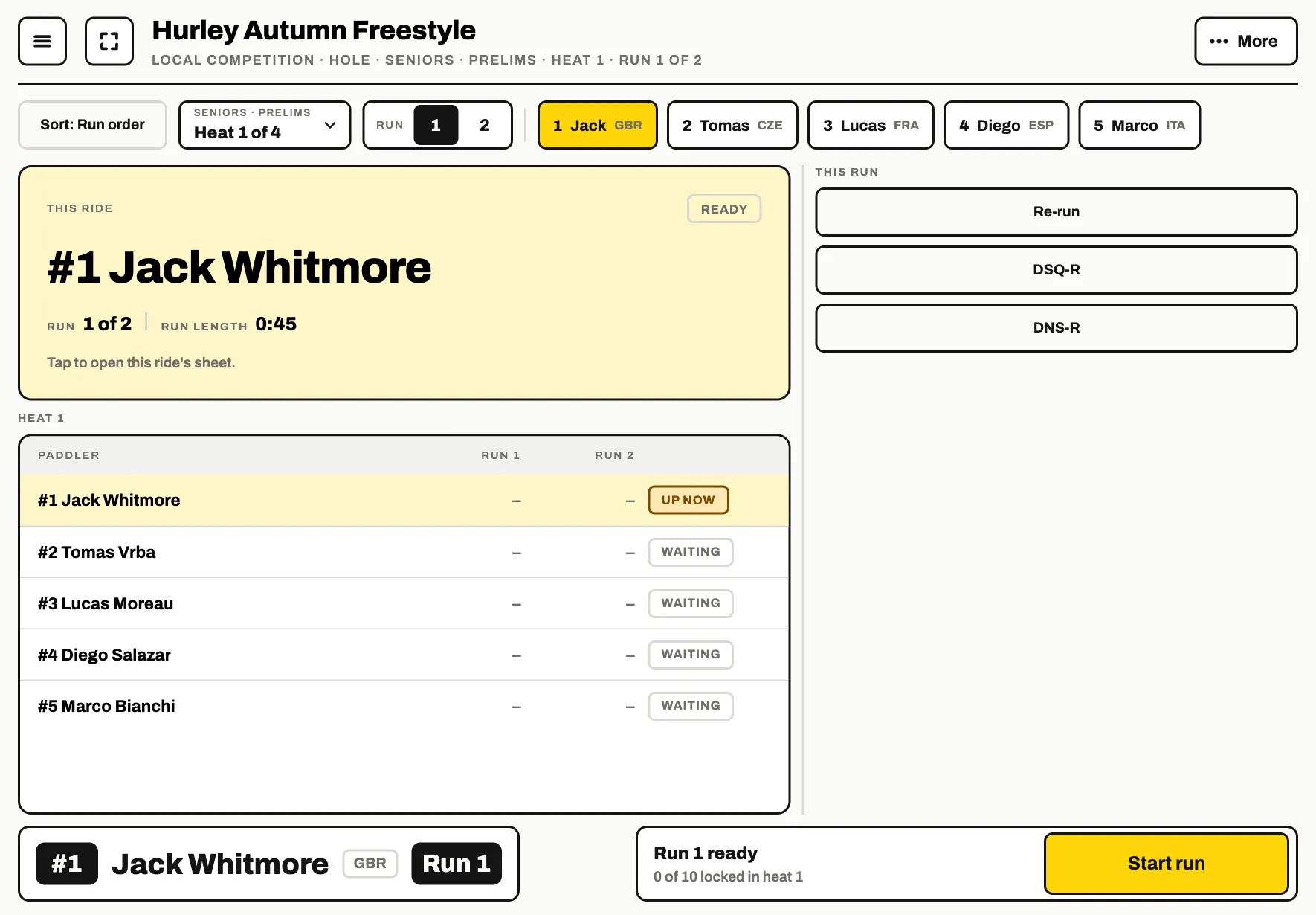
Results build up as you go. They are under More, in Result lists and Print and export.